Best Settings For Stardew Valley
Hello, friends! Today, we will discuss the various in-game settings and options in Stardew Valley to enhance your gameplay experience.
Recommended starting presets
| Player/setup | Recommended starting point | Tradeoff |
|---|---|---|
| PC keyboard and mouse | Auto-Run on; Tool Hit Location on; Gamepad Mode auto/off; UI Scale 100%; Zoom 90–100%; V-Sync on unless troubleshooting input/display issues. | Lower zoom shows more of the map but makes sprites and text smaller. |
| PC or console controller | Gamepad Mode auto/forced as needed; Controller-Style Menus and menu snapping on if preferred; Tool Hit Location on; Item Stowing set to Gamepad Only or on after testing. | Menu snapping is faster for many players but less free-form than pointer navigation. |
| Mobile/touch | Start with Tap-to-Move & Auto-Attack; enlarge the toolbar/buttons until they are reliable; enable the tool-location indicator; switch to joystick/buttons for combat if auto-attack feels imprecise. | Tap-to-move is convenient for chores; virtual controls offer more direct combat control. |
| Low-performance device | Use native or lower resolution, V-Sync on, lower lighting quality, lower zoom only if performance remains stable, and close overlays/mods before reducing readability. | Lighting and resolution changes affect image quality; heavy mods often matter more than vanilla settings. |
| Accessibility/readability | Increase UI Scale and Zoom, keep Tool Hit Location on, reduce or disable flash effects, adjust bite sound and volume channels, and choose the control scheme that requires the least precise timing. | Larger UI/zoom reduces how much of the map is visible. |
Game Controls and Settings
Auto-Run
By default, your character will run in the game. You can switch to walking by holding the Shift key, although there isn’t much use for walking in the game.
Character Portraits
Portraits are displayed during conversations by default. You can choose to hide them in the settings if you prefer.
Tool Location Indicator
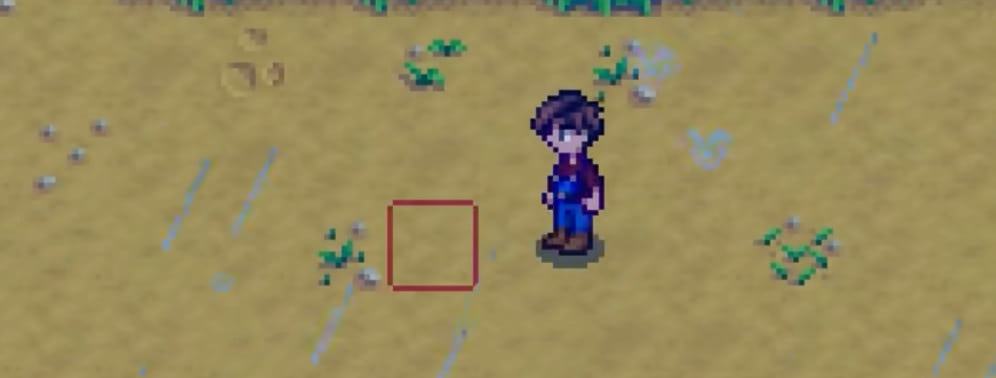
When enabled, a red square will appear, showing the exact position where the tool will be used. This helps to prevent mistakes when using tools.
Controller Settings
You can choose to enable controller mode, which will automatically detect your controller. Note that the controller layout differs slightly from keyboard and mouse controls.
Inventory Management
Item Stowing
Item Stowing is an option-assisted behavior, not a universal left-click command. When the option is enabled, the configured Use Tool control can stow an eligible held item when it is not being used on a valid target. On PC, left-click is the default Use Tool binding, but the result still depends on the selected item, cursor target, setting, and any custom binding. On a controller, use the bound Use Tool button and consider the “Gamepad Only” setting. Mobile uses its selected touch/virtual-control scheme rather than the desktop mouse instruction.
Slingshot Shooting Mode
- PC: equip the Slingshot, hold the bound Use Tool control, aim with the pointer, and release. The legacy slingshot firing option changes the aiming direction behavior, so test both modes rather than following a single drag direction.
- Controller: equip it, aim with the controller input shown by your layout, and use/release the bound tool control. Button labels differ across Xbox, PlayStation, Switch, and remapped controllers.
- Mobile: aiming can use a tap/drag or virtual-control gesture depending on the chosen control scheme. A “swipe” instruction applies here, not automatically to PC or controller.
Sound Options
Volume Settings
You can adjust the volume for music, sound effects, ambiance, and footsteps according to your preferences.
Fishing Sound
Change the sound of fish biting the hook, similar to changing ringtones.
Typewriter Sound
Enable or disable the typewriter sound effect during conversations.
Animal Sounds
You can choose to turn off animal sounds if you find them distracting, especially when you have many animals on your farm.
Graphics Options
Resolution
Higher resolution settings provide a wider field of view. However, the maximum resolution depends on your display (1080p, 2K, or 4K).
V-Sync
Enable or disable vertical synchronization.
UI Scaling
Adjust the scaling of the game’s user interface, such as the dialogue boxes, inventory, and top-right corner indicators.
Background Menu
Choose whether to display the game screen or a static image when accessing menus.
Zoom Level
Adjust the game’s zoom level within the range of 75% to 125%. If you need more zoom, you can use mods.
Lighting Quality and Snow Transparency
Adjust these settings based on your preferences.
Flash Effects
Turn off flash effects for explosions and lightning if you find them distracting.
Control Customization
You can customize various hotkeys to improve your gameplay efficiency. For example, change the action key to Spacebar for easier access when planting crops in two rows. Swap the toolbar switch key with Shift if you find it more comfortable, and change item slot keys to Q, E, R, C, and V for easier access, depending on your personal preference.
Screenshots
You can take screenshots of your current map by pressing the designated key. Access the folder containing your screenshots through the in-game menu.
If you have installed mods, you may also find a “Mod Settings” option in the menu, which allows you to configure your mods. That covers all the essential in-game settings and options in Stardew Valley. Happy farming!