Platform Access Hub
How to play Pokemon Yellow on PC, 3DS, Switch and cart
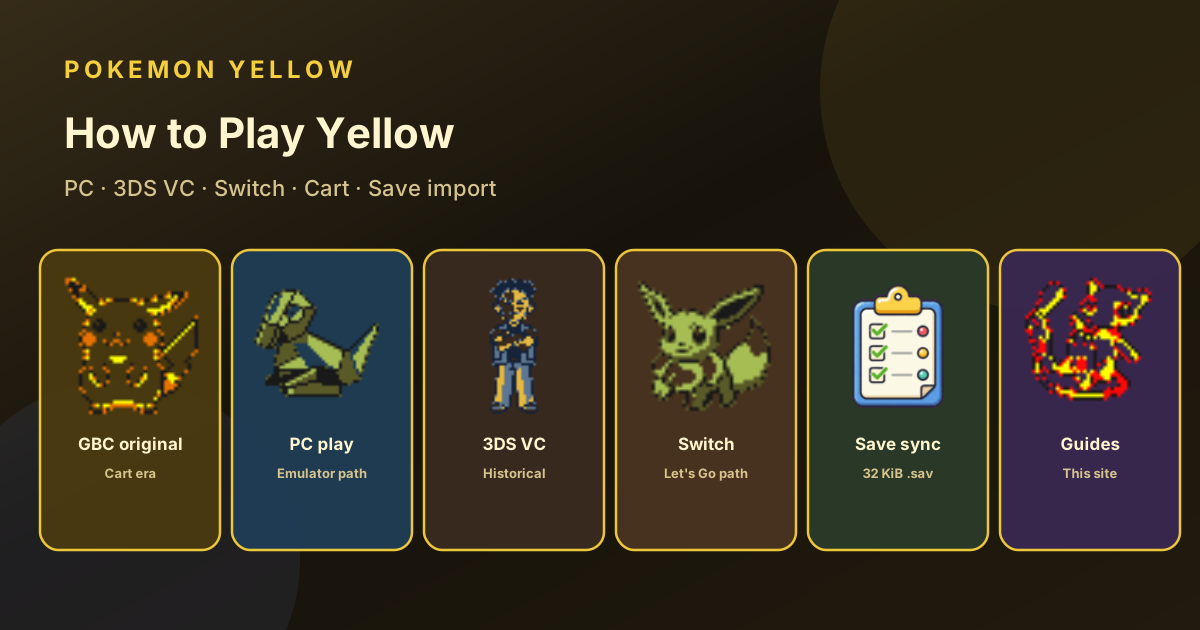
Yellow is a Game Boy cartridge with Game Boy Color enhancements, not a Color-only title. It runs on the original Game Boy as well as GBC/GBA hardware, PC/Mac/Linux emulators, mobile GB/GBC apps, or historical 3DS Virtual Console if you already own it. There is no native Switch Yellow—Let’s Go is the modern official path.





Fast Answer
PC play = emulator + legal dump + 32 KiB save
On a computer, install a maintained Game Boy Color–capable emulator, load an English Yellow image you obtained lawfully (cart dump / purchase path), and treat the battery file (.sav / .srm, 32,768 bytes) as your real progress. Then use this site’s Save Import to sync badges and planners—files stay in the browser.
Ownership
What this page will and will not do
This is an access and setup guide for people who already own or lawfully obtain Yellow. We do not host ROMs, link pirate dumps, or sell cartridges. Emulator software is discussed only as a playback tool; game data remains your responsibility. Prefer original carts, personal dumps of carts you own, or official re-releases still accessible on accounts that already purchased them.
Platform matrix
Where can you play Yellow?
| Path | Is it real Yellow? | Status | Best for | Save notes |
|---|---|---|---|---|
| PC / Mac / Linux emulator | Yes (GBC image) | Practical today | Speed, tools, backups, this site’s Save Import | 32 KiB .sav/.srm |
| Android / iOS GB apps | Yes (with legal image) | Practical today | Portable play; brand apps vary by store policy | Export battery save when possible |
| Original GB / GBC / GBA hardware | Yes | Hardware authentic | Original feel, collecting (value out of scope) | Cart SRAM; dumpers for PC backup |
| 3DS Virtual Console | Yes (official port) | Owned titles only post–eShop | Official digital release; no Nintendo cloud-save service | VC save export tools are platform-specific |
| Nintendo Switch | No native Yellow | Play Let’s Go instead | Modern official partner-Pikachu Kanto | Different save ecosystem (HOME era) |
| Other VC-era re-releases | Varies by region/era | Historical storefronts | Only if already purchased on that account | Check that system’s backup method |
Desktop
How to play Pokemon Yellow on PC
Setup checklist
- Install a maintained Game Boy Color–capable emulator or multi-system frontend with a GB/GBC core.
- Use a lawfully obtained English Yellow ROM/cart dump. Confirm it boots as Special Pikachu Edition.
- Set controls, fullscreen, and optional color/filter preferences. Yellow targets GBC color.
- Create a real battery save (not only savestates). Expect ~32 KiB raw size.
- Back up the .sav/.srm file before cheats, glitches, or randomizer experiments.
- Optional: import that save into Save Import to power this site’s walkthrough and planners.
What “best emulator” actually means
- Accurate enough for Gen 1 timing, saves, and link-cable experiments if you need them
- Reliable battery saves that survive app updates
- Easy backups and clear file locations
- Active maintenance over abandoned skins
- Desktop frontends with GB/GBC cores are fine; pure GB/GBC apps are also fine
We do not rank brand-name emulators as product ads—pick any current, reputable tool that meets the list. Mobile “My Old Boy–class” apps are popular on Android for the same reasons: saves and controls first.
Phone / tablet
Android & iOS play notes
Android
Dedicated GB/GBC emulators (including apps people search as “My Old Boy” class) are common. Prioritize battery-save export, external file access, and safe storage permissions. Cheats exist on many mobile cores—use only on backup saves; see the cheats guide.
iOS
Store policies change often. Sideloading and App Store options differ by region and year. Same rule: legal ROM/dump, battery saves, and backups. If you cannot export a raw 32 KiB save, this site’s Save Import cannot sync that device’s progress.
Nintendo platforms
3DS Virtual Console & Switch reality check
3DS Virtual Console (historical)
- Official digital re-release of Gen 1 titles while eShop was open
- After eShop closure: no new purchases for most shoppers
- If Yellow is already on your 3DS account/SD, you can generally still launch it
- Great official option for people who bought it in time
- Surfing Pikachu / VC quirks differ slightly from cart—see partner guides
Can I play original Yellow on Switch?
No official native Yellow on Switch Online libraries as a 1:1 GBC title in the sense players mean. The supported modern “partner Pikachu in Kanto” product is Pokémon Let’s Go Pikachu—a different game. Compare them on the dedicated page before buying.
Saves
Save files, transfer, and this site
Battery save facts (English Yellow)
- Raw size: 32,768 bytes (32 KiB)
- Common names: .sav, .srm
- Save states (slots F1–F10 style) are not the same as battery SRAM
- Checksum: the game verifies main data—corrupt transfers fail in-game or in our importer
- This site reads saves locally only—never uploads
Transfer patterns people search
- Emulator ↔ emulator: copy the battery file; match emulator endian/extension quirks
- Cart ↔ PC: use a cart dumper/flasher you trust; keep original backups
- VC ↔ emulator: possible with era-specific extract tools; not plug-and-play for everyone
- After import here: walkthrough objectives, badges, and planners can sync from the save bridge
Glitch and cheat runs should always start from a disposable backup. Pair with cheats or Mew glitch only if you accept softlock risk.
Chooser
Which path fits you?
Tick what is true. The recommendation updates on this device (localStorage).
Your recommendation will appear here—PC emulator for classic Yellow + tools, owned 3DS VC if you have it, or Let’s Go when you only want official Switch software.
Classic Yellow
Cart or emulator. Use this whole guide site: Brock answers, key items, Moon Stones, teams.
Owned 3DS VC
Official binary you already purchased. Still original mechanics; export/import is the hard part.
Switch Let’s Go
Not Yellow, but the official modern Pikachu Kanto product. Read the comparison before expecting Gen 1 rules.
Play tips
After it boots
English data on this site
Guides, gym teams, and save offsets assume English Pokemon Yellow. Other languages can shift text and some tables.
Savestate ≠ battery save
States are great for practice. Real transfers and Save Import need the 32 KiB SRAM file.
Speed up carefully
Fast-forward is fine for grinding; turn it off for frame-sensitive glitches if a guide requires real timing.
Then use the toolkit
Once playing: first-run tips → Brock → Moon Stone → key items → best team. All linked from the blog and tools nav.
FAQ
Platform questions
How do I play Pokemon Yellow on PC?
Use a GB/GBC emulator with a legal Yellow image, keep a 32 KiB battery save, and optionally import that save into this site’s local Save Import tool.
Can I play Yellow on Switch?
Not as a native official GBC Yellow SKU. Play Let’s Go Pikachu for the official modern partner-Pikachu Kanto game, or play original Yellow on cart/emulator/owned VC.
Does 3DS Virtual Console still work?
If you already own it on that system/account, yes in the usual offline sense. New eShop purchases are not a current path for most players after eShop closure.
Where is the save file?
Beside the ROM for most emulators as .sav or .srm, raw size 32,768 bytes for English Yellow battery SRAM.
Do you provide ROM downloads?
No. This page is setup and platform comparison only.
Linked tools